
Power Automate Integration with Power Apps, Power BI, and Microsoft 365 for End‑to‑End Automation
Need quick insights? Summarize with AI & save time
 ChatGPT
 Perplexity
 Claude
 Google AI Mode
Table of Content
- Introduction
- Understanding Power Platform Ecosystem Integration Strategies
- Top Integrations for Microsoft 365 Automation Workflows
- End-to-End Automation Scenarios Power Automate
- Power Automate Best Practices Governance
- MultiQoS 4-Phase Integration Methodology for Power Automate Integration
- How MultiQoS Helps Enterprises Build End-to-End Power Automate Integration?
- FAQs
Summary:
Power Automate integration becomes far more valuable when it goes beyond approvals and alerts. The real leverage comes when Power Apps, Power BI, SharePoint, Teams, and Microsoft 365 operate as a single, coordinated system rather than as separate tools with separate owners.
This guide breaks down the Power Platform integration model enterprises actually need: when to use cloud flows versus desktop flows, how connectors and Dataverse shape architecture, which integration patterns matter most, where end-to-end automation delivers measurable value, and how to keep the platform governed before sprawl turns into a problem.
Introduction
Most teams wire up a few Power Automate flows, tick the automation box, and move on. Which works fine until you’re knee-deep in a sprawling Microsoft 365 environment and realize you’ve been leaving a lot on the table. In fact, knowledge workers still spend up to 40% of their time, equivalent to two full days out of every work week, managing repetitive manual tasks.
Used properly, Power Automate doesn’t just run individual tasks. It ties things together, your business apps, your reporting, Teams, SharePoint, all of it. And that shift from “a bunch of flows” to something more connected is where things actually get interesting.
You stop just automating and start getting real consistency between teams, fewer dropped handoffs, and enough visibility to figure out what’s actually going wrong when something does.
That’s what this guide is about. We’ll get into how the integration architecture works, which patterns are worth paying attention to across Power Apps, Power BI, Teams, and SharePoint.
Especially, where Power Automate is genuinely the right tool for end-to-end scenarios, and how to keep governance from becoming an afterthought because nothing kills momentum faster than inheriting three hundred flows with no owners and no documentation.
Understanding Power Platform Ecosystem Integration Strategies
Power Automate integration works best when each product in the Power Platform does one job well. Power Apps handles the user interface. Power Automate handles orchestration and backend process logic. Power BI turns operational data into decision-ready insight. Microsoft 365 services such as Teams, SharePoint, and Outlook provide the collaboration and content layer around that workflow.
That division matters. Without it, teams build duplicate logic in multiple tools, reporting breaks away from execution, and automation starts looking helpful in demos but messy in production.
Cloud Flows vs Desktop Flows in Power Automate Integration
Cloud flows are designed for API-driven automation. They connect systems, trigger on events, route approvals, move data, and notify users across modern services. This is the default model for most Power Automate integration use cases tied to Microsoft 365 automation workflows.
Desktop flows solve a different problem. They automate actions in legacy systems that lack reliable APIs. That makes them useful for UI-based tasks in older finance, operations, or desktop-bound applications. Not elegant. Still necessary in some estates.
The right choice depends on system reality:
- Cloud flows for digital process automation across connected services
- Desktop flows for legacy UI automation where APIs do not exist
- Hybrid patterns when enterprises need both
Power Platform Connectors Guide and Dataverse Foundation
A strong Power Platform connectors guide starts with understanding the bridge layer. Standard, premium, and custom connectors define how data moves across applications. That is not just a technical detail. It shapes cost, security, resilience, and long-term maintainability.
Dataverse adds the controlled data layer underneath many enterprise workflows. In practice, it gives Power Automate integration a more reliable system of record for structured business processes, especially when multiple apps and flows need shared logic, shared entities, and auditability.
When organizations skip this foundation, they often end up automating disconnected lists and files instead of designing a scalable process model. With a custom enterprise software development solution, organizations can ensure reliable integrations with a controlled Dataverse layer.
Top Integrations for Microsoft 365 Automation Workflows
The value of Power Automate integration becomes clearer when you look at the core combinations enterprises use every day.
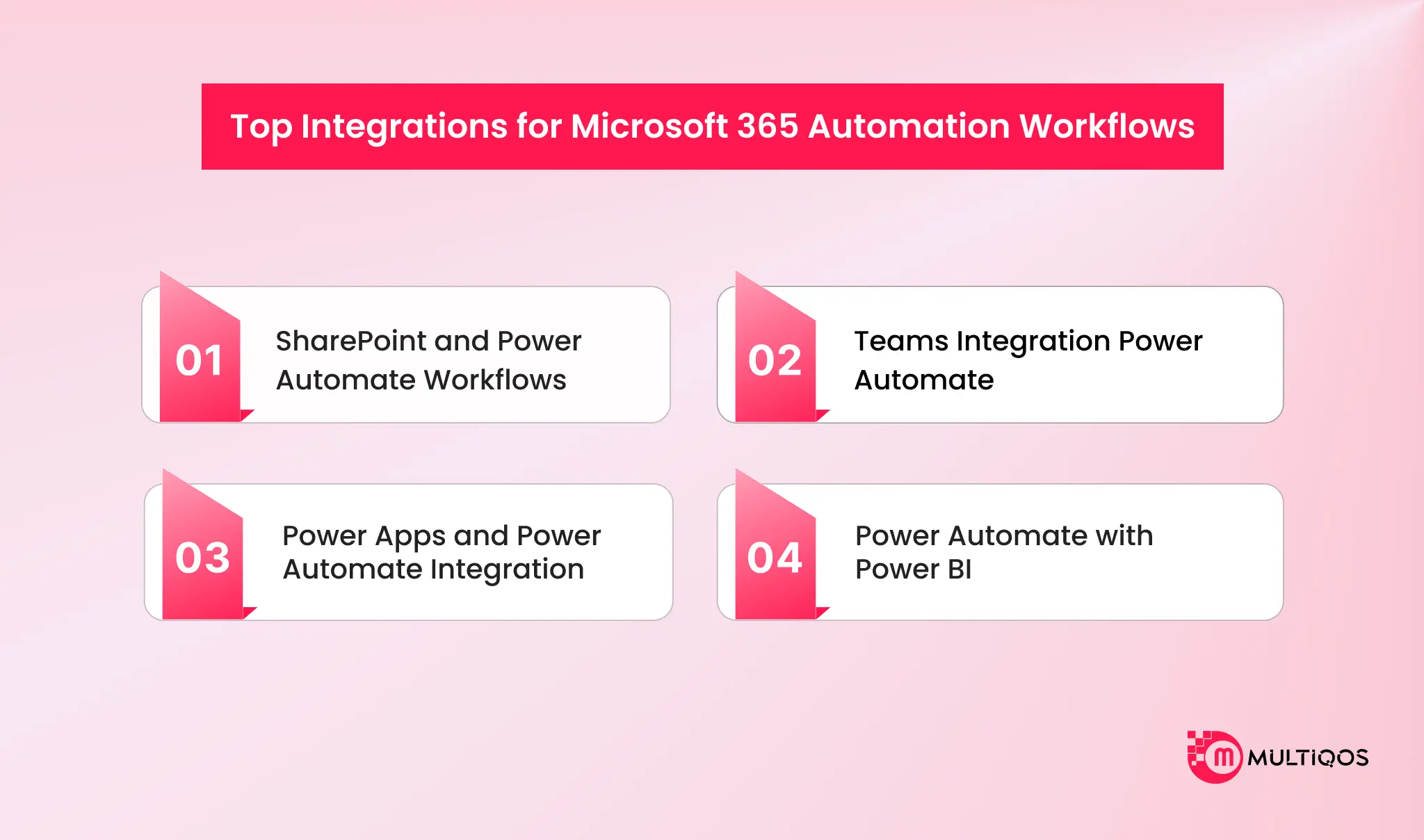
SharePoint and Power Automate Workflows
SharePoint and Power Automate workflows remain one of the most practical combinations in Microsoft 365. SharePoint stores structured content, documents, metadata, and team-level records. Power Automate moves that content through review, tagging, routing, retention, and archival steps automatically.
This optimizes ROI for organizations. In fact, enterprises adopting Power Automate in 2025 are achieving a 248% ROI over three years, with most seeing a full payback in under six months.
A common example is document intake. A file lands in a SharePoint library, metadata is applied, approval is routed, the correct team is notified in Teams, and the final version is archived without manual chasing. That is simple on paper. It saves real hours when repeated at scale.
Teams Integration Power Automate
Teams integration with Power Automate turns workflow updates into actions inside the place where employees already work. Instead of sending people to portals they forget to check, flows can push alerts, approval prompts, and Adaptive Cards directly into chat or channels.
This is where response time improves. A finance approver reviews a request in Teams, a project lead gets an automated escalation alert, or a support team receives context-rich notifications tied to a business process already in motion. The workflow becomes visible. That changes adoption.
Power Apps and Power Automate Integration
Power Apps and Power Automate integration is one of the strongest front-end and back-end pairings in the Microsoft ecosystem. Power Apps captures user input. Power Automate handles the long-running, asynchronous logic behind it.
That separation keeps app interfaces lean while allowing automation to deal with approvals, file processing, external system calls, and notifications. The Power Apps V2 trigger improves this pattern further by handling structured inputs more cleanly across text, numbers, and files.
The value can be seen from a simple field service use case. An inspection form is submitted by a technician using Power Apps. Power Automate is used to validate the submission, store the files in SharePoint, update a record in the Dataverse, send data to the manager in Teams, and send data downstream for reporting. One front end. One orchestrated backend.
Power Automate with Power BI
Power Automate with Power BI closes a gap many enterprises still tolerate for too long: reports that show problems but do nothing about them.
With the Power Automate visual, teams can trigger context-aware actions directly from dashboards. A sales manager can launch follow-up actions on stalled opportunities. An operations lead can escalate delayed fulfillment cases from a report view. A finance team can trigger review workflows on threshold exceptions.

End-to-End Automation Scenarios Power Automate
End-to-end automation scenarios that Power Automate supports are generally the ones where many systems, several roles, and repeated decision points occur, providing friction.
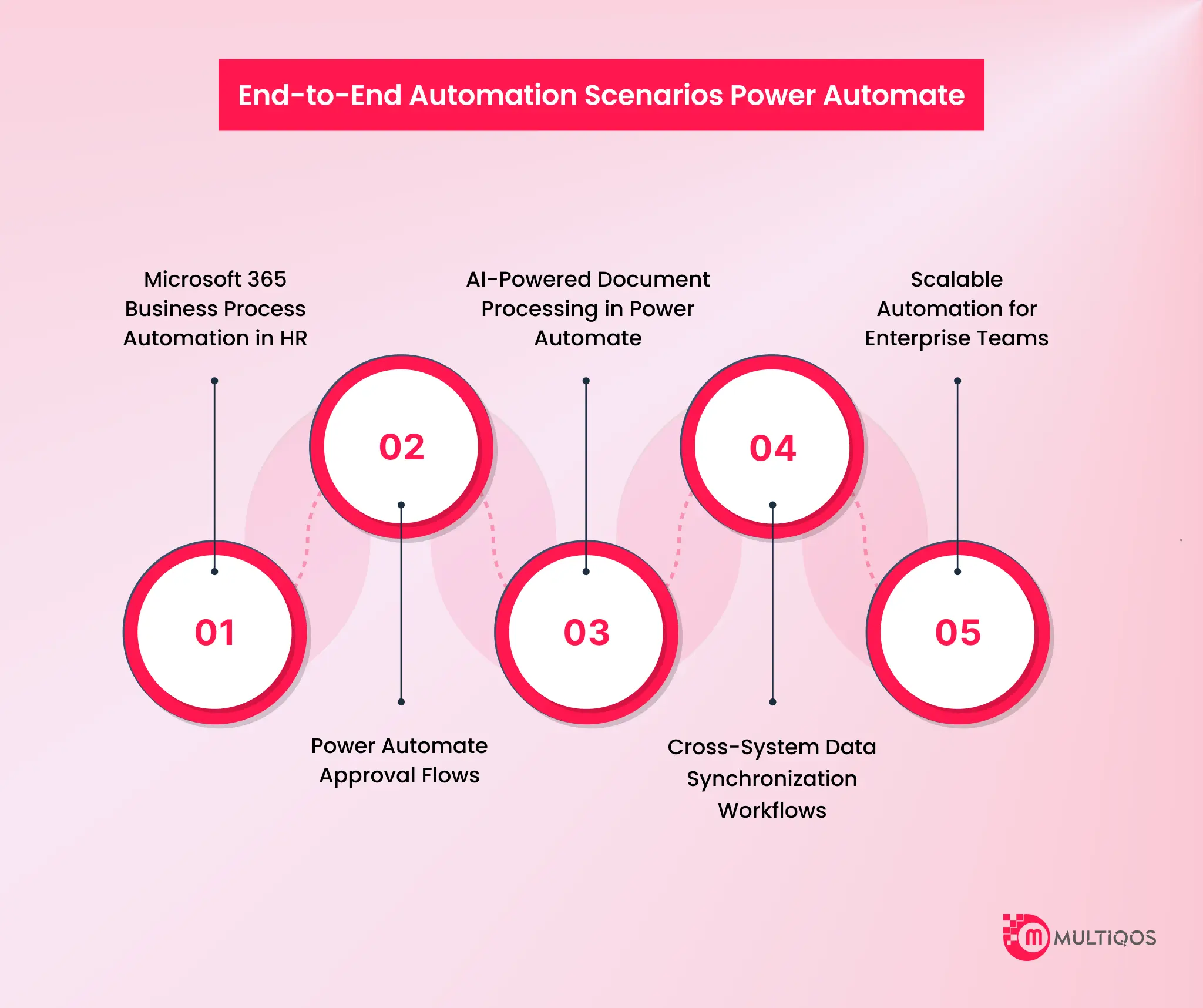
Microsoft 365 Business Process Automation in HR
In HR, Power Automate integration can orchestrate onboarding and offboarding across Entra ID, SharePoint, Outlook, and Teams. A new hire submission can trigger account creation tasks, checklist generation, document collection, welcome notifications, and equipment coordination across departments.
The same pattern works in reverse for offboarding. Access revocation, asset recovery tasks, archive actions, and HR notifications all move through one governed process instead of a chain of emails.
Power Automate Approval Flows
Power Automate approval flows remove delay from structured decisions. High-value expense approvals are a good example. An employee submits a request. The manager approves first. Finance reviews second. If the amount crosses a threshold, a final approver is added automatically.
That is where multi-level approvals, Power Automate delivers real value. The logic is visible, time-stamped, and auditable. No inbox archaeology required.
AI-Powered Document Processing in Power Automate
Document processing is where AI Builder and Power Automate tend to prove themselves pretty quickly. Invoices, receipts, forms, ID documents, the stuff that does not fit in any system neatly.
AI Builder isolates what is significant, Power Automate formats it into data to be used, and a workflow sends it where it needs to go, into an ERP, a SharePoint list, an approval step, etc.
The reason this one gets traction is simple: you’re eliminating the manual rekeying without having to rebuild anything from scratch.
Cross-System Data Synchronization Workflows
Cross-system sync is another strong use case for Power Automate integration. If a Salesforce opportunity closes, a flow can create a SharePoint project folder, notify delivery through Teams, and trigger project setup tasks automatically.
That kind of coordination matters because handoff failure is rarely a tooling issue alone. It is an orchestration issue. Power Automate integration solves that when designed with clear ownership and data rules.
Scalable Automation for Enterprise Teams
Enterprise teams do not struggle because they lack ideas for automation. They struggle because unmanaged success creates a mess quickly. As automation footprint grows, the focus must shift from “Can we automate this?” to “How do we govern this at scale?”
Scalability requires a robust Center of Excellence (CoE) to help monitor the health of the flow, manage environment security, and ensure that a single update of a template doesn’t break mission-critical processes.
When scoring is honest and monitoring is constant, automation moves from a series of “hacks” to a resilient enterprise asset.
Power Automate Best Practices Governance
Power Automate best practices governance starts with discipline around naming, ownership, lifecycle, and monitoring. Every flow should have an owner. Every environment should have a purpose. Every critical process should be documented beyond the original maker.
The Center of Excellence Starter Kit helps expose orphaned apps, inactive flows, and usage trends that otherwise stay invisible until something breaks. Resilience patterns matter too. The Try-Catch-Finally model makes workflows more reliable by handling exceptions deliberately instead of failing midstream without context.
Governance and Compliance in Power Platform Automation
Automation scales do not add governance and compliance. The policies of Data Loss Prevention must establish policy connectors that are business-approved, non-business, and block. Access to sensitive workflows should be restricted by role-based access control to allow only certain individuals to edit, trigger, and administer workflows.
A practical checklist helps:
- Define connector categories before broad rollout
- Separate Dev, Test, and Prod environments
- Assign named owners to every production flow
- Review orphaned assets regularly
- Restrict editing rights on sensitive automations
- Audit high-risk approvals and document-processing flows
This is where many organizations hesitate. Fairly so. Power Automate integration creates speed, but without governance, it also creates hidden risk.

MultiQoS 4-Phase Integration Methodology for Power Automate Integration
Most automation programs do not fail because Power Automate cannot do the work. They fail because architecture, governance, and rollout discipline were thin from the start. Our 4-phase approach keeps Power Automate integration tied to enterprise reality.
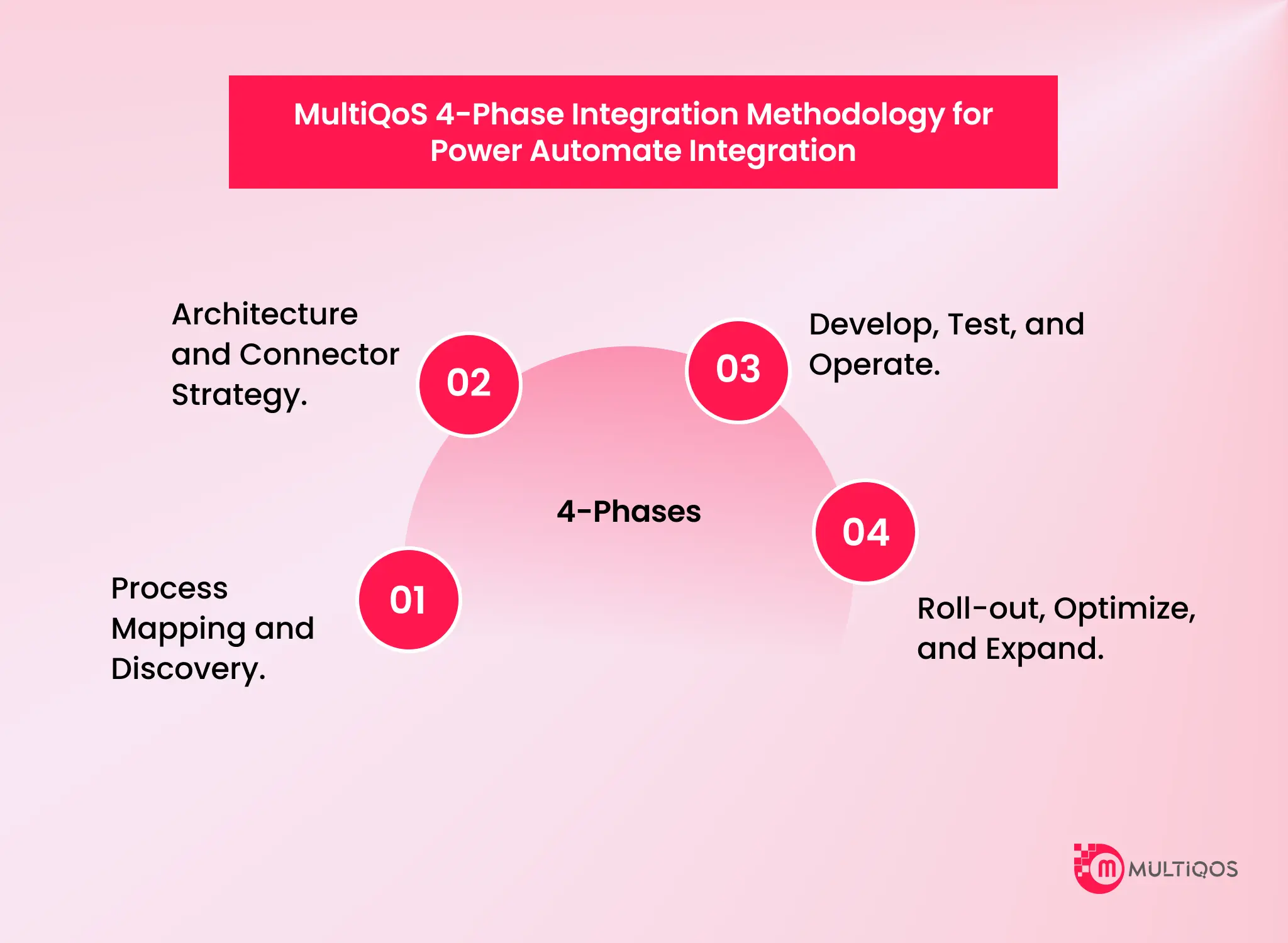
Phase 1: Process Mapping and Discovery.
Determine workflows of repetitive and high-volume tasks in Power Apps, Teams, SharePoint, Power BI, and other systems. Identify current state bottlenecks, data dependencies, and handoffs, and design flows.
Phase 2: Architecture and Connector Strategy.
Determine Dataverse placement/approved connectors/ justification of desktop flows/ how Power Automate integration would be accomplished across environments. This is where scale is planned, not patching in later.
Phase 3: Develop, Test, and Operate.
After role controls, DLP policies, and lifecycle rules, create the flows & app triggers, reporting hooks, and approval logic. Exception, Ownership, and Operational Visibility test.
Phase 4: Roll-out, Optimize, and Expand.
Introduce in batches, measure usage and breakpoints, simplify the processes, and add more end-to-end automation situations that can be handled by Power Automate without platform sprawl.
How MultiQoS Helps Enterprises Build End-to-End Power Automate Integration?
Many of the enterprises already have Power Apps, Teams, SharePoint, and Power BI. What they lack is what they frequently lack is an uncontaminated automation layer between them that prevents duplication of logic, data exposure, and the creation of flows whose ownership is unknown to anyone six months down the line.
MultiQoS does not view Power Automate integration as a chain of independent flows. We examine the operating model shown beneath it: your existing systems, connector risks, structure of environment, approval paths, reporting dependencies, and compliance limits. Subsequently, we develop Microsoft 365 automation processes that suit that fact rather than struggle with it.
The goal is not more automation for its own sake. It is a reliable execution. Better handoffs. Faster approvals. Cleaner reporting. Less manual coordination between tools that should already be working together. If you are ready to turn scattered automations into a governed, scalable Power Automate integration strategy, MultiQoS can help you plan and build it properly.
FAQs
The biggest advantage is orchestration. Power Automate integration connects forms, approvals, documents, notifications, and reporting into one managed workflow instead of forcing teams to move work manually between apps.
Power Apps handles user interaction and data capture. Power Automate handles backend process logic, approvals, system updates, and asynchronous actions that should not live inside the app interface itself.
Desktop flows make sense when a legacy application has no usable API and critical work still depends on its interface. Cloud flows should be the default for modern, API-driven Microsoft 365 automation workflows.
Use a clear environment strategy, DLP policies, flow ownership rules, role-based access control, and regular visibility through governance tooling such as the CoE Starter Kit. That is what keeps growth manageable.

Get In Touch

Get Stories in Your Inbox Thrice a Month.

Microsoft IQ Explained: The Role of Fabric IQ, Foundry IQ, Work IQ, and Web IQ
Building Automated Approval Workflows with Microsoft Power Automate
Paper Checklists to Power Apps for Manufacturing: Digitizing Shop-Floor Workflows