
Workflow Automation with Microsoft Power Automate: How It Eliminates Repetitive Tasks
Need quick insights? Summarize with AI & save time
 ChatGPT
 Perplexity
 Claude
 Google AI Mode
Table of Content
- How to understand Workflow Automation and How Does Microsoft Power Automate Work?
- The core types of flows
-
Licensing and accessibility
- The hidden cost of repetitive work
- 5 Power Automate Workflows That Eliminate Repetitive Tasks
- How Power Automate Connects to the Rest of the Microsoft Stack
- Why Low-Code Makes This Accessible to Any Size of Business?
- How to Choose Your First Workflow to Automate?
- Conclusion
- FAQs
Summary:
Workflow automation with Microsoft Power Automate turns manual, repetitive business tasks into automatic flows cloud flows, desktop flows, approvals, invoice processing, onboarding, reporting. Post covers real use cases, connectors, AI Builder, Dataverse, Copilot Studio, plus how to start automating fast.
Automation reduces the time-consuming tasks that should not be done by your team manually. Like approvals in inboxes, double entry of invoices, and data copied from a form to a spreadsheet, to a second system, and then sent in an email. Such manual processes slow down your operations. Workflow automation with Microsoft Power Automate is the solution to just this problem.
But there’s a cost. Errors made by one repetitive process can steal an entire working day every week undetected until an audit or a customer complains about them.
In this post, I’m going to give you some workflows that you can build with your teams and how they relate to Power BI and the greater Power Platform.
So, what should be the first tasks that are given to a flow?
The answer isn’t so much the tool, but where the hours are going.
How to understand Workflow Automation and How Does Microsoft Power Automate Work?
Low code tools earn their keep in one specific way. They take a multi-step business process that currently lives in someone’s head and turn it into logic a system runs on its own.
What is workflow automation?
Workflow automation means using software to run processes that involve many steps, with little or no human intervention. In the Power Platform, these automated processes are called flows. You describe the logic once. Consistency stops depending on whether someone remembered.
How does Power Automate work?
Power Automate is the connective tissue of the Power Platform. Power Apps builds the interface. Power BI handles the analytics. Power Automate moves the data between applications and services, and pushes it into Microsoft 365 or Dataverse.
The model itself is simple.
- Triggers: The event that initiates the flow, such as an email message coming in or a new record in a database.
- Actions: What the system is going to do next, for example, send a notification or update a row in Excel.
- Connectors: These are preconfigured integration points that enable the flow to communicate with Outlook, SharePoint, or a 3rd party system such as Salesforce.
The core types of flows
Picking the wrong flow type is where most automation designs go sideways.
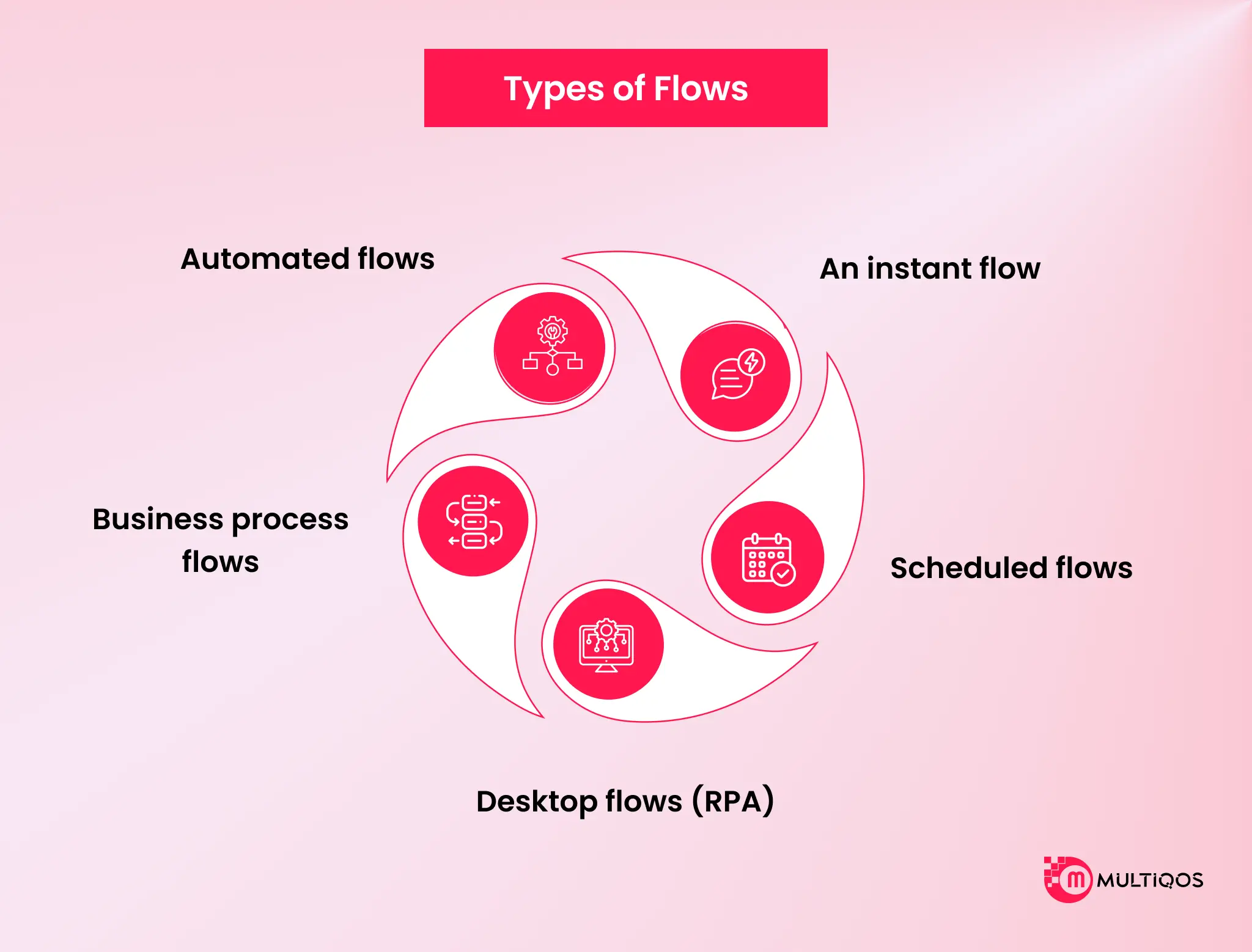
- Automated flows fire on a system event, such as an email with an attachment or a submitted form. Best suited to high-volume, repetitive trigger pain.
- An instant flow runs when a user starts it, typically from a button within Teams, a mobile app or within a Power BI report.
- Scheduled flows are determined by a fixed schedule. Data cleanup at night, hourly synchronizing and recurring reports.
- Desktop flows (RPA) run when there is no API available to use, and are a way to automate the actions that a human normally takes in a legacy system, such as clicking and typing.
- Business process flows provide users with a multi-stage path within Dataverse that is guided to ensure that a standard business process is followed the same way the next time.
Licensing and accessibility
Power Automate for cloud flows with standard connectors is included with most Microsoft 365 business and enterprise plans. That seeded license typically includes the basic apps (Outlook, Teams, SharePoint, Excel). Premium connectors are a different matter. Anything reaching into an ERP like SAP or a database like SQL Server, along with desktop RPA and higher run limits, sits behind separate per-user or per-flow licensing.
The hidden cost of repetitive work
Manual work usually doesn’t appear as a line item. That’s why it lasts such a long time.
- Salary drain: Manual approval, reminder, and follow-up activities are lost in salaries paid. It never appears as a cost because it never appears at all.
- The error tax: every manual entry point is a chance for a mistake. Errors are cheap to make and expensive to find. Fixing one downstream costs far more than preventing it upstream.
- Opportunity cost: automating the mundane returns skilled hours to skilled work. An analyst copying data between tabs is not analyzing anything.
5 Power Automate Workflows That Eliminate Repetitive Tasks
Most operational drag comes from work nobody chose to do. Copying data. Chasing approvals. Rekeying the same invoice into a second system. These five workflows remove operational drag, representing some of the highest-value Power Automate use cases across finance, operations, and HR
| No. | Workflow | Trigger | Core Connectors | What You Get Back |
|---|---|---|---|---|
| 1 | Capturing data across sources | New form or email attachment | Forms, Outlook, SharePoint, AI Builder | No manual data entry |
| 2 | Transaction data analytics | Scheduled or new record | Excel, Dataverse, Power BI | Clean data, no copy-paste |
| 3 | Employee onboarding | New hire record created | SharePoint, Teams, Outlook, Planner | Same-day provisioning |
| 4 | Bug and issue triage | New bug logged | Azure DevOps, Teams, Outlook | Faster routing, no missed tickets |
| 5 | Customer insight integration | New CRM record or event | Dataverse, Power BI, third-party APIs | Real-time customer view |
1. Capturing Data Across Sources
This runs on automated cloud flows triggered by a system event, usually a form submission or an email landing with an attachment.
- Operational Insight: AI Builder processes unstructured documents without a field structure to extract phone numbers, addresses, and amounts. Instead of building it up step-by-step, the Makers can just type in the flow in plain language, such as “When an email containing a Purchase Order comes in, extract the information and save it to SharePoint.
- Strategic Value: In most teams, the most numerous tasks with the least judgment are Data Entry and Document Gathering.
2. Transaction Data Analytics
It uses scheduled cloud flows on certain time periods, or automated cloud flows that are activated when a new record is added to the database.
- Operational Insight: Power Automate is the orchestration layer that pulls data from Excel and legacy systems, and pushes it into Dataverse. After it has been placed in the middle, Power BI can send a downstream workflow if the KPI falls beyond a certain limit.
- By using strategic value: Process Mining you can read the event log of those transactions, if you have Case ID, Activity and Timestamp.
3. Employee Onboarding
It starts the moment a new hire record appears in the HR system or a SharePoint list.
- Operational Insight: The flow shares onboarding documents through Outlook, provisions access to the right Teams channels, and uses Planner to schedule induction meetings and first week tasks.
- Strategic Value: The Singapore Civil Defense Force built its NEXA agent on triggers like these, adding gamified learning so new personnel settle into their roles faster. Onboarding stops depending on whether someone remembered to send the welcome pack.
4. Bug and Issue Triage
Automating the reporting path takes administrative load off support and stops critical tickets from going quiet.
- Operational Insight: When a bug is logged, the flow routes the details into Azure DevOps for tracking and alerts developers through Teams or Outlook at the same time.
- Strategic Value: Auto-triage AI agents can take this further, creating the issue and handling follow up without a human in the loop. Response time improves because nothing waits in a queue for someone to notice it.
5. Customer Insight Integration
This one ensures that the customer view is up to date and that CRM systems are kept up to date with analytics platforms.
- Operational Insight: Power Automate comes with a vast library of prebuilt connectors, some of which are premium connectors for Salesforce, SAP, and Dataverse. But that is what makes it possible to exchange data in a distributed stack, and not a one-off integration project, to begin with.
- Predictive Analytics: It becomes possible when integrated with the insight layer, which has strategic value. These automated triggers are also used alongside the AI predictions to help healthcare providers predict patient numbers and allocate staff and beds in advance of need, rather than responding to it.
How Power Automate Connects to the Rest of the Microsoft Stack
Look back at the five workflows above. Not one of them stayed inside a single app.
Onboarding touched SharePoint, Teams, Outlook, and Planner. Transaction analytics moved data from Excel into Dataverse and out through Power BI. That is the pattern worth noticing. A standalone flow saves one task and stops there. A connected flow compounds, because every system you plug in adds another stream the flow can read, write, or act on.
So the question is not whether Power Automate works. It is how far the automation reaches once it does. Enterprises that plan this deliberately, usually with Power Platform consulting services mapping the environment first, end up automating across departments instead of across desks.
Here is what each layer adds.
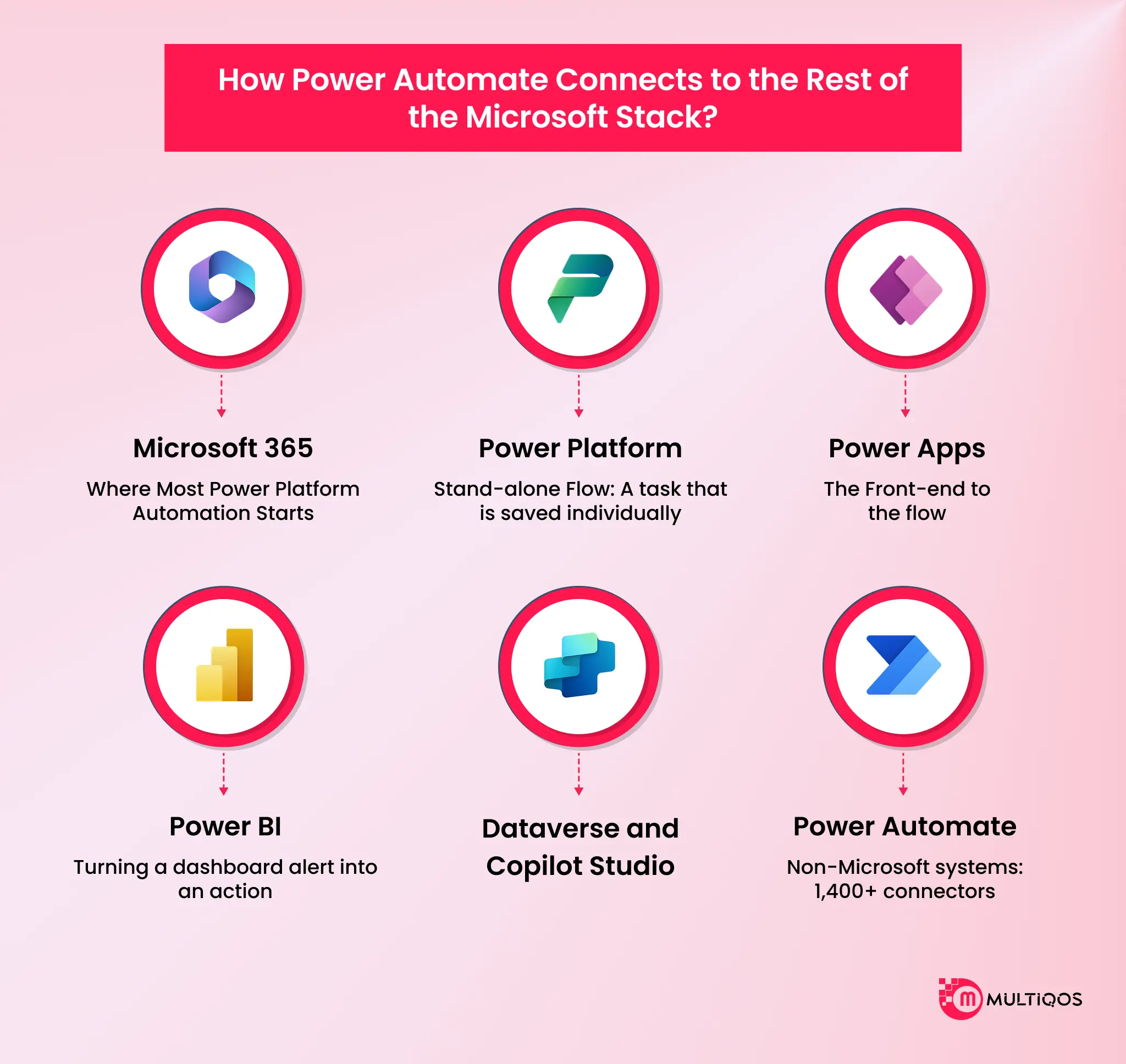
Microsoft 365: Where Most Power Platform Automation Starts
Outlook, Teams, SharePoint, Excel, and Forms all run on standard connectors. As covered in the licensing section above, those are already seeded into most Microsoft 365 business and enterprise plans.
Read an email, post to a Teams channel, file the attachment in SharePoint, update an Excel row, capture a Forms response. The vast majority of first flows never leave this circle, which is exactly why the 30-day timeline later in this post is realistic.
Power Apps: The Front End for Your Power Platform Flows
Power Automate handles the logic. Power Apps gives your users the button that starts it. Build a simple app for a field approver, and one tap fires the flow underneath. This matters more than it sounds.
A flow nobody can reach is a flow nobody runs, and adoption dies quietly. Teams building those interfaces through Power Apps consulting services get the frontline layer right before the logic ships, not after usage flatlines.
Power BI: When a Power Platform Dashboard Triggers the Work
Most dashboards report, but this one acts on it. Set a Power BI data alert for inventory dropping below threshold, then wire it to a flow that raises the purchase order. That is the same mechanic behind workflow two above, just pointed the other direction: analytics as the trigger rather than the output.
Organizations running end-to-end Power BI consulting services use these alerts to close the gap between seeing a number and doing something about it. The dashboard stops being a rear-view mirror.
Dataverse and Copilot Studio: The Power Platform Governance Layer
Dataverse is the secure store your flows read from and write to. Copilot Studio sits on top conversationally, so a user types a question and a flow answers it.
Together they solve a problem you will hit around flow number thirty. Scattered automations are impossible to audit. Centralizing the logic and the data means you can govern and query it from one place instead of chasing owners across departments.
1,400+ Connectors: Where Power Platform Reaches Past Microsoft
Power Automate is not fenced inside Microsoft. It ships with more than 1,400 connectors covering Salesforce, SAP, ServiceNow, Google, Adobe, and thousands more. Several of those are premium, which is the licensing line drawn earlier.
The rule is simple. If your process crosses vendors, your flow crosses vendors too. None of this requires a development team, which is the part most people get wrong about the Power Platform.
Why Low-Code Makes This Accessible to Any Size of Business?
The old argument was “automation requires developers. No longer. Gartner has seen business users, not IT, be primary contributors to the growing number of low-code apps, with the market expected to reach $445 billion by 2026. Low-code tools accelerate time to market, but evaluating trade-offs between low-code and traditional code comes down to Power Automate vs. custom development.
Templates as a starting point
You don’t generally work on a blank canvas. Power Automate comes with hundreds of prebuilt templates for data capture, notifications, and approvals. Choose one that’s close to your workflow and modify it to suit your needs, and in an afternoon you’ll have a working flow.
Who actually builds these flows
Operations managers. Finance analysts. HR coordinators. The people closest to the pain build the fix, because the low-code designer speaks in triggers and actions, not code. That proximity is the point. The person who feels the friction is the person who removes it.
Governance: where IT still needs to hold the line
Here is the caveat vendor decks skip. Business-built flows without governance become the next mess. IT still owns the guardrails: environment strategy, data loss prevention policies, and connector controls. Delegated building works only when someone sets the boundaries. Freedom inside a fence, not a free-for-all.
How to Choose Your First Workflow to Automate?
Do not automate the most complex process. Automate the one that pays back fastest and proves the model. Here is how to pick it.
The 4-question qualifying test
Score a candidate process against four questions:
- Is it repetitive? Runs daily or weekly, the same way each time.
- Is it rule-based? The steps follow logic, not judgment.
- Is it high-volume or high-error? Frequent enough, or fumble-prone enough, to matter.
- Does it cross apps or people? The more handoffs, the bigger the win.
Four yeses means build it now.
A 30-day first-flow timeline
You do not need a quarter. Week one, map the process and pick the trigger. Week two, build the flow from a template and connect your apps. Week three, test with real data and handle the edge cases. Week four, roll it out and watch it run. A first production flow ships in about 30 days for most straightforward processes.
What to measure before and after
Baseline first, or you cannot prove the win. Capture three numbers before you build: hours spent per cycle, error rate, and turnaround time. Measure the same three after. Not vibes. Numbers. That before-and-after is what earns you the budget for flow number two.
Conclusion
Repetitive work is capacity you are already paying for and not getting back. A REST API end-to-end solution that has been automated from the start will reduce the burden of extremely human work for the highly skilled tasks. Throw away these leaky moments, and with Microsoft Power Automate, automate that workflow, which is likely something you have in your Microsoft 365 license.
The decision is not whether to automate. That decision is made for you by the hours you are losing. The decision is which workflow you start with, and whether you build it alone or with a partner providing expert Power Automate consulting services to scope and ship it fast.
FAQs
Business repetitive tasks such as Approvals, data entry, notifications, and file management are automated using Power Automate. Connects your applications to flows that trigger actions automatically in response to events, simplifying actions across Microsoft 365 and 1,400+ other services without any manual work.
The workflow logic is driven by Power Automate, the user interface is created using Power Apps, and analytics and dashboards are created using Power BI. A flow can feed an app and trigger from a dashboard alert, as they share a common data store of Dataverse and share the same workspace inside Power Platform.
Yes, for Power Automate desktop flows, when there is no API, you can use RPA to control the legacy application via the UI. This will need an upgraded tier of license. It enables you to connect older systems that the regular cloud connectors don’t support.
A simple first workflow can be mapped and rolled out in about 30 days; a simple template-based flow can be accomplished in a single afternoon. The number of apps it connects to and the number of edge cases it has in the process will affect the length of the timeline.

Get In Touch

Get Stories in Your Inbox Thrice a Month.

Microsoft IQ Explained: The Role of Fabric IQ, Foundry IQ, Work IQ, and Web IQ
Building Automated Approval Workflows with Microsoft Power Automate
Paper Checklists to Power Apps for Manufacturing: Digitizing Shop-Floor Workflows