
Building Automated Approval Workflows with Microsoft Power Automate
Need quick insights? Summarize with AI & save time
 ChatGPT
 Perplexity
 Claude
 Google AI Mode
Table of Content
- What Actually Breaks in a Manual Approval Process?
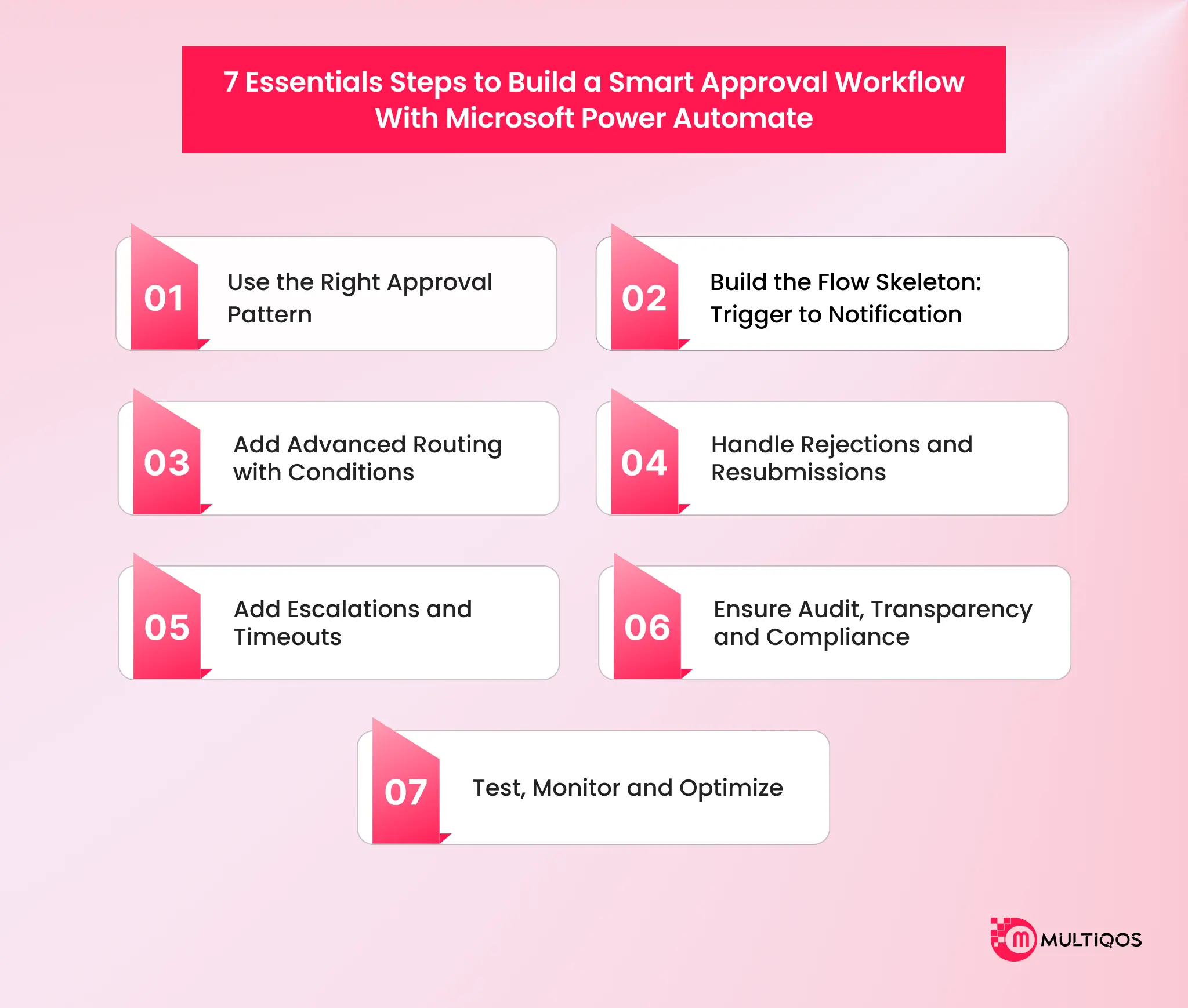
- 1. Use Microsoft Power Automate Approval Workflow Patterns to Match Different Decisions
- 2. Build the Flow Skeleton: Trigger, Start, and Wait for an Approval, Condition, Notification
- 3. Put a Power Apps Front End on the Request So Approvers Get Structured Data
- 4. Route Notifications Through Teams and Outlook Instead of a Separate Portal
- 5. Connect Microsoft Power Automate Approval Workflows to the Systems That Hold the Record
- 6. Harden the Flow Before It Handles Real Money
- 7. Govern the Rollout with Environments, DLP Policies, and a Center of Excellence
- Build In-House or Bring in a Microsoft Power Automate Partner? A Decision Framework
- Final Thoughts
- FAQs
Summary:
This guide walks through several build stages of Microsoft Power Automate approval workflows like matching approval patterns to decision types, wiring the flow skeleton, adding a Power Apps intake layer, routing decisions to Teams and Outlook, writing outcomes to SharePoint or Dataverse, hardening flows with run-after error handling and child flows, and governing rollout with environments, DLP policies, and the CoE Starter Kit. Ends with a decision framework for building in-house versus engaging a Power Automate partner.
Implementing Microsoft Power Automate to build automated approval frameworks can help enterprises manage requests. However, most enterprises treat automation of approvals as a problem that they can fix through stricter rules in email inboxes.
This is not a problem that you can solve through routing logic, so leveraging Microsoft Power Automate becomes a more sensible option, as it can allow your teams to automate escalation timeouts, which is where workflow automation with Microsoft Power Automate moves past inbox rules.
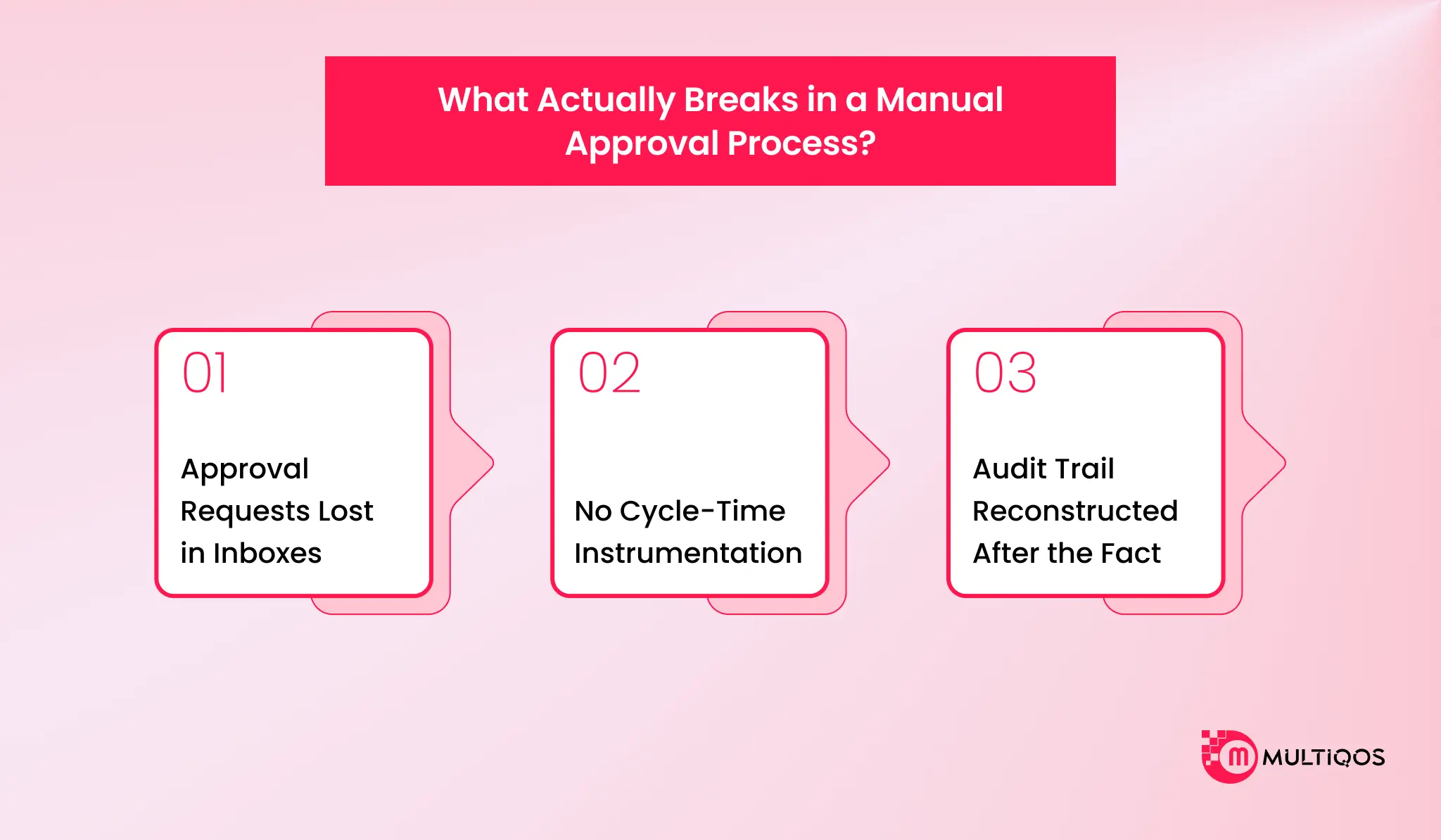
Take an example of Komatsu Australia, a leading heavy equipment manufacturer, which managed to reclaim 300 hours annually on invoice processing through a Microsoft Power Automate solution. Invoice processing is one of the more common Power Automate use cases enterprises start with. It helped them automate manual decision pipelines, which used to fail routinely due to three systematic breakdowns:
- requests lost in shared inboxes
- zero-cycle-time instrumentation
- audit trails reconstructed after the breakdowns
This guide is designed to help you automate core approval patterns with a skeletal configuration flow, Power Apps front, and intake team notification system integrations, and enterprise governance frameworks for Microsoft Power Automate Approval Workflows.
What Actually Breaks in a Manual Approval Process?
Manual workflow approvals fail due to problems with routing and instrumentation. When decisions rely on static email threads, organizations encounter issues with routing logic, lack of visibility, and no audit trails.
Approval Requests Lost in Inboxes
Without proper automated routing, approval requests can disappear in crowded inboxes. This leads to important approvals sitting idle when an approver is unavailable. Such manual follow-ups become the only mechanism to move work forward, creating unnecessary friction and delays in critical business operations.
No Cycle-Time Instrumentation
Manual approval processes do not offer enough visibility into cycle times. What this means is that process owners cannot pinpoint where the request is stuck, how long it will take to complete the entire process of approval, or which department is causing such bottlenecks continuously, because there is no central tracking mechanism.
Audit Trail Reconstructed After the Fact
Audit trails are important to ensure that your auditors get a complete picture of the approval process. However, the expectation of auditors to get control access, timestamped entries, user identification, and immutability often hits a wall due to manual processes. In enterprises, manual systems have audit trails reconstructed hastily.
To resolve the problems of routing and visibility failures, enterprises must replace the static email threads with purpose-built decision logic. Here are some of the Microsoft Power Automate approval workflows.
1. Use Microsoft Power Automate Approval Workflow Patterns to Match Different Decisions
Microsoft Power Automate approvals connector is a core workflow component that you can use to allow users to request review and confirm decisions directly with Microsoft’s automation platform, one component of the wider Microsoft Power Platform benefits stack.
Teams can match the technical configuration to the business reality and ensure accurate routing, faster turnarounds, and clean audit trails using Microsoft Power Automate. You can use these Microsoft Power Automate approval patterns for the following types of approvals:
| Approval Pattern | Behavior | Best Business Use Case |
| Approve/Reject – First to Respond | Pauses flow until any assigned user responds. | Time-sensitive requests or shared group mailboxes where the first available agent takes action. |
| Approve/Reject – Everyone Must Approve | Pauses flow until all assigned users approve; rejects if one rejects. | Legal reviews, high-value financial decisions, and strict compliance sign-offs. |
| Custom Responses – Wait for One Response | Uses custom buttons (“Need Info”). Proceeds after one reply. | Reviews requiring nuanced feedback beyond a binary yes/no. |
| Custom Responses – Wait for All Responses | Uses custom buttons and pauses until all assigned users submit a response. | Broad stakeholder consensus where every department must weigh in with specific statuses. |
| Sequential Approvals | Routes the request step-by-step through a defined hierarchy. | Multi-level sign-offs where higher management only reviews pre-approved requests. |
Approve/Reject – First to Respond
In this pattern, the request is routed to one or more users, but the workflow proceeds as soon as the first decision is registered. This type of workflow approval pattern is ideal for routine, time-sensitive requests routed to a functional team where the goal is all about speed, allowing any authorized individual to make the final decision.
Approve/Reject – Everyone Must Approve
This is a type of workflow pattern where each of the approvers needs to unanimously approve a workflow, or it will be deemed rejected. If a single approver rejects the workflow, the outcome becomes rejected.
It is a type of approval workflow pattern that is best if you want to ensure that all the stakeholders in an approval decision are accounted for. This ensures no critical domain is overlooked before final authorization.
Custom Responses: Wait for All Responses
This is the type of approval pattern where it does require unanimous approval from all the stakeholders, but it’s individually assigned to each stakeholder through custom-defined decisions. In other words, it is highly effective for enterprises where a single request requires multiple decision paths.
Sequential Approvals for Multi-Level Sign-Off
Sequential approvals are all about enforcing structured decision-making. What this means is that enterprises route requests through a predefined, step-by-step, chronological order. Each request is underway. Pattern release applications for senior stakeholders help individuals at the stage of the approval process and ensure better compliance with organizational policies.
When you identify the correct approval pattern, it’s time to govern your decision logic. The next step will be to wire the actual automation together.

2. Build the Flow Skeleton: Trigger, Start, and Wait for an Approval, Condition, Notification
A workflow is basically a sequence of several stages structured in a way that, right from the initial request to the final approval, everything moves forward in a specific path using a standard SharePoint leave request pattern. As a reference, here is how you can create a step-by-step skeleton required to build a functional approval workflow.
Choosing the Trigger
- Event Detection – Identifying the request origin: The first step of this sequence is to have a trigger. Every approval flow starts with a trigger event. For example, an employee submitting a new leave request to a SharePoint list is a trigger event.
Similarly, choosing a robust data source trigger ensures that the flow captures necessary metadata for your entire process. This metadata can be the name of the requester, department, and justification to approve a specific workflow.
Configuring Start and Wait for an Approval
- Action Configuration – Routing the decision: Action configuration means that you need to add a “Start and wait for an approval” action. This will automatically pause any workflow until the assigned user responds and approves it.
- Dynamic Content Mapping – Populating the request: At this stage, you need to add the approval title, request details, and assign approver fields through dynamic content from the SharePoint trigger. This will help the reviewer have all the context needed to make a decision.
Branching on the Approver Response
- Condition Logic – Evaluating the outcome: Once an approver submits the response, please make sure there is a condition action. This condition action will help you evaluate the results. Configure this condition to check if the approval outcome is equal to what you need to actually approve for a specific workflow.
- Path Splitting – Directing the next steps: The logic branches the flow into separate if-yes and if-no paths. What this does is ensure that approved requests and rejected requests trigger entirely different downstream actions.
Writing the Outcome Back to the Source System
- System of Record Update – Closing the loop: You need to add a SharePoint update item action to write the final decision approval comments and status back to the original list item. This is to be done in both true and false branches. This is a very crucial step because it ensures that the SharePoint list remains the definitive source of truth.
- Requester Notification – Communicating the result: Finally, you need to add an Outlook “Send an email” or Teams action to notify the original requester of the outcome. This notification step is standard Power Automate integration with Power Apps, Power BI, and Microsoft 365. It needs to pass through the dynamic comments so the approver can see any specific feedback left by the manager.
Enterprise-grade approvals require a more controlled user experience. It helps them prevent missing information or unstructured data from affecting the routing logic.
3. Put a Power Apps Front End on the Request So Approvers Get Structured Data
Combining Power Apps with Microsoft Power Automate helps you create cohesive business applications, a pattern covered in these Power Apps use cases. In such applications, Microsoft Power Apps handles the user interface, while Microsoft Power Automate executes the backend approval process. Using both these services in tandem ensures that requesters submit structured data rather than free-text emails. This is important for enterprises, as it helps secure information stored in a system of record like Meta or SharePoint before the flow even triggers.
Canvas App as the Request Intake Layer
Microsoft Power Apps allows enterprises to build custom frontends, and these customized frontends allow users to submit requests through mandatory structured fields. Due to the structured fields, users provide specific data, such as exact monetary amounts, department codes, and supporting attachments.
Such an app prevents incomplete submissions from entering the pipeline. The app then stores this clean data directly into a SharePoint list or database data warehouse table, ensuring a secure and accurate official record.
Passing Context from Power Apps to the Flow
Once the Canvas app saves the data, creation of a new item acts as the trigger for a Microsoft Power Automate flow. Capturing of structured inputs is done through the intake layer, and Microsoft Power Automate seamlessly maps these extracted fields as dynamic content in the approval document.
What this does is guarantee the assigned approver receives all the necessary context. This includes the requester’s name, the requested amount, and the category, which are directly provided inside the approval card without needing to chase down missing details.
Showing Approval Status Back to the Requester
Using a centralized data source like a data warehouse or SharePoint, the Canvas app can instantly reflect the created status of specific requests submitted by the user. Microsoft Power Automate will update the backend record with the final approval outcome.
This would also include the approved email, the decision date, and any comments the Microsoft Power Apps interface displays. It offers much more visibility, eliminating manual follow-ups and allowing requesters to act immediately on the final decisions.
Now that the intake layer is standardized, the next challenge is to ensure approvers actually see action on those requests where they already work. This is far better than forcing them to log into separate portals.
4. Route Notifications Through Teams and Outlook Instead of a Separate Portal
Apple workflows between systems for the reviewers to adopt make the situation a little critical. It will impact the entire adoption rate. This is important because if you force a workflow for the reviewers that is hard to navigate, or it’s an unfamiliar system, it can lead to major delays. Microsoft Power Automate solves this by bringing the decision to the approver’s preferred workspace. It leverages deep integrations with Microsoft Teams, Outlook, and mobile apps to ensure rapid responses.
Adaptive Cards in Microsoft Teams
Microsoft Teams adaptive cards are a highly effective primary approval interface for enterprises. If you look at such a system, most users use Teams consistently throughout the workday. Enterprises often measure that usage of tools like Microsoft Teams often leads to faster approval cycle time. Adaptive cards display rich, structured data and interactive elements seamlessly.
This allows reviewers to process requests from the desktop or the Teams mobile app. Approvers already working inside Teams also surface Microsoft Copilot use cases for summarising request context. If an approver needs clarification, they can simply ask a question directly through the Teams chat.
Actionable Messages in Outlook
A team where everyone prefers working out of their inboxes. Notoso Power automates the dispatch of actionable messages to Outlook. Such automated emails include embedded approval details and interactive buttons allowing the reviewer to approve or reject the workflow directly from the message they receive, without opening a browser or logging into the Microsoft Power Automate portal.
It is important to send such actionable emails from a standard system account, and external guest users may still need to use the web portal to register their decision (because it can ensure proper security for the data to be sent to approvers and reviewers for the approval Power Automate workflow approvals).
Reminders, Escalation, and Reassignment
Every enterprise approval system must account for planned leave, unexpected absences, and simple inaction. Power Automate can handle this reality through three core delegation and escalation patterns:
- Automatic Delegation: Flows can check an approver’s out-of-office status or calendar before routing, automatically redirecting the request to a pre-defined delegate or manager if the primary reviewer is unavailable.
- Timeout-Based Escalation: If an approver fails to respond within a set window ( 24 hours), the flow can trigger a sequence to send a reminder. If ignored for 48 hours, it escalates the request to their manager, and at 72 hours, routes it to a department administrator.
- Manual Reassignment: By default, the approvals engine allows assignees to manually reassign their active task to another qualified user if they cannot make the decision. Process owners can toggle this “Enable reassignment” feature on or off depending on the strictness of the requirement.
Getting the yes in Microsoft Teams is convenient for the approval, but that decision is not useful unless it is permanently recorded where the actual business happened.
5. Connect Microsoft Power Automate Approval Workflows to the Systems That Hold the Record
An isolated email with the approved tab is not a workflow, but just a simple notification. For an automation to complete, the final decision, timestamp, and reviewer comments must be written to the definitive database. Microsoft Power Automate acts as the bridge between the human decision and the system of record. However, the choice of destination dictates your licensing and architecture.
SharePoint and Microsoft 365 Data Sources
Microsoft Power Automate natively connects to Microsoft 365 services. This includes:
- SharePoint
- Microsoft Teams
- OneDrive
- Microsoft Planner
Everything is under a standard seeded license included with most M365 Enterprise plans.
SharePoint is an excellent post-effective button for internal operational tasks. This includes:
- leave handling
- leave requests
- document reviews
- simple asset tracking
It allows you to update item metadata immediately after an approval concludes.
Dataverse as the System of Record for Approvals
Microsoft Data Warehouse is the foundational data platform for Microsoft Power Platform. In fact, the approvals connector natively depends on a provisioned Data Warehouse environment. It allows the connectors to store active requests, process states, and historical responses behind the scenes.
Organizations need their actual business data exported directly into Dataverse for complex enterprise solutions. It allows them to take advantage of relational data modeling, granular row-level security, and long-term audit compliance. Getting this layer right is part of a full Microsoft Power Platform implementation.
What this means is that connecting your flow to custom Dataverse tables is classified as a granular action. This means the flow or the user interacting with it requires a premium Microsoft Power Automate license.
Line-of-Business Systems and Custom Connectors
Whenever a process involves real money, customer data, or core operations, the system of record fits outside the Microsoft ecosystem. Microsoft Power Automate offers hundreds of premium connectors to write approval outcomes directly into third-party enterprise platforms like SAP, ServiceNow, Salesforce, and Oracle.
If a prebuilt connector does not exist for your specific finance or ERP systems, you can leverage Microsoft Power Automate solutions from experts to create custom connectors. You can also use the HTTP connector to call virtually any external API.
Adding decisions back to an external database introduces data integration risk, especially if that target system is down. The workflow must be resilient enough to catch the error instead of just crashing.
6. Harden the Flow Before It Handles Real Money
For enterprises that design workflows for processing invoice payments, contract executions, and procurement orders, it is important to handle exceptions and stale reads.
If you have such workflows, you need to harden the flows, and this means anticipating failure points. For example, you need to anticipate timeouts due to broken connections or departing employees before you design the entire architecture and build the architecture to survive such issues.
Configure Run After and Scoped Error Handling
Design the Microsoft Power Automate approval workflows in such a way that if a single action fails or times out, the entire flow run will fail. This will ensure much more resilience. To build such resilient automations, you will need to partner with Microsoft Power Automate experts.
You can explicitly configure the run-after setting on critical steps. For example, the “Start and wait for an approval” action has a hard 30-day timeout limit, so if an approver does not respond in that window, the run terminates with an error.
Adding such subsequent actions set to run only when the actual step has timed out or has failed, the flow can gracefully update the system record to an expired status or escalate to a manager (rather than leaving the request in an unsolved state).
Extract Repeated Logic into Child Flows
Using the same escalation rules or audit logging steps across multiple branches when workflows grow in complexity can create a maintenance burden. It is important for your development team to extract repeated logic into dedicated child flows, which are called by the parent flow.
Child flows are useful for reuse and separation. Implementing robust child flow error handling ensures that if the sub-process encounters an issue, it passes the failure status back to the parent flow. This allows the parent flow to execute an alternative path or alert an administrator.
Naming, Solutions, and Application Lifecycle Management
Enterprise workflows need not be built on standalone cloud flows tied to an individual personal account. It is important to build Microsoft Power Automate approval workflows within data solutions to ensure long-term stability.
You can leverage standardized containers that enable application lifecycle management. This allows administrators to safely migrate automations from development to test and finally to the production environment.
These solutions also support connection references linked to a non-interactive service account. What this means is that if the original flow creator changes roles or leaves the company, the critical business approval continues to run without any interruption.
The best way to ensure that your Flow survives runtime errors and protect an entire automation program is to have platform-level control. It allows you to reduce errors and also secure sensitive data.
7. Govern the Rollout with Environments, DLP Policies, and a Center of Excellence
Implementing enterprise-wide automation capabilities requires strict governance. Handling low-code build rights to business teams without guardrails can lead to security risks, connector risks, and uncontrolled data movements.
Environment Strategy and the Default Environment Problem
A Microsoft Power Platform tenant includes a default environment where all the licensed users can build apps and flows. If business-critical approvals are placed in the default environment, it can increase the security and sprawl risk.
An enterprise environment strategy requires provisioning dedicated environments for:
- development process
- user acceptance testing
- production
Isolated environments must be secure, and they should have guardrails that require Microsoft Entra ID security groups, ensuring that only authorized members can set database trigger approvals or manage logs.
Data Loss Prevention Policies for Approval Connectors
Which canvas can share data with one another? This is important because Microsoft Power Automate connects both internal Microsoft 365 services and external platforms to premium connectors.
Administrators must configure the DL rules to ensure that specific business data is blocked for third-party services and is not being routed to third-party non-business connectors like social media or personal email. This prevents sensitive approval documents from leaking outside.
The Power Platform CoE Starter Kit
The Power Platform Center of Excellence (CoE) Starter Kit is a suite of templates and administrative tools provided by Microsoft to help organizations govern low-code adoption. It equips IT teams with centralized dashboards to monitor flow usage, track API consumption, and identify inactive or failing automations.
While Microsoft increasingly builds native governance features into Managed Environments, the CoE Starter Kit remains a vital framework for establishing an internal maker enablement model, providing automated compliance requests, and giving IT full visibility into exactly what the business is building.
With a strong governance model in place to protect Microsoft Power Automate approval workflows, enterprises face a final operational choice: who will actually build these workflows?
Build In-House or Bring in a Microsoft Power Automate Partner? A Decision Framework
Microsoft often positions Power Automate as a major low-code tool for business users. However, for most enterprises, automation is not just one project.
It requires implementation across multiple functions and workflows, and this is why deciding between an in-house team for the same implementation and hiring a proper Microsoft Power Automate partner becomes difficult.
And this decision comes down to criteria like process complexities, integration surfaces, compliance exposure, and internal capabilities.
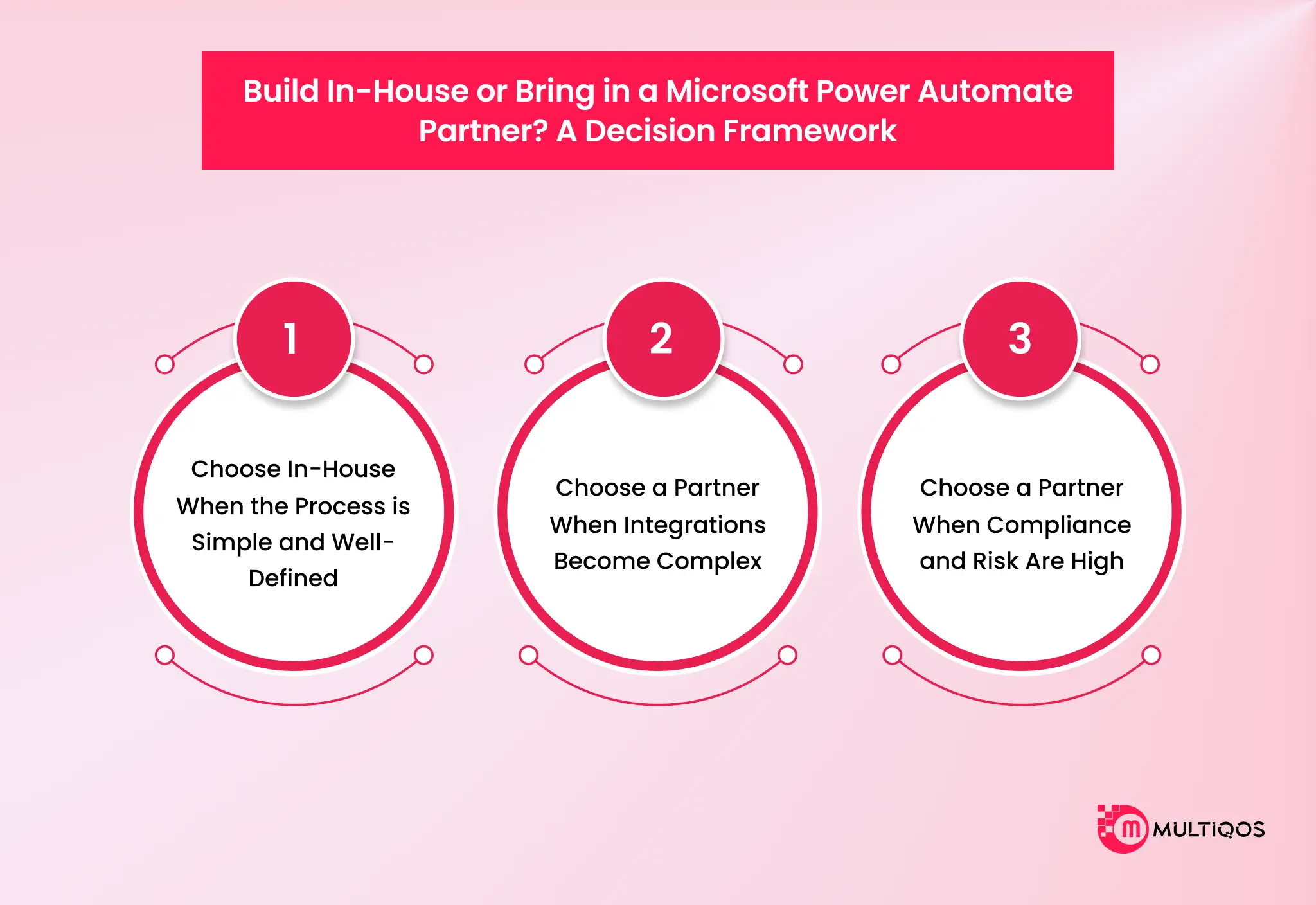
Choose In-House When the Process is Simple and Well-Defined
If you are thinking of using Microsoft Power Automate for automation of workflows, the best way is to leverage citizen developers. Again, there will be a dilemma about choosing internal teams for your project, but it will only work if you are looking to build workflows that operate strictly within the Microsoft 365 boundary.
If the approval routes a SharePoint list item, sends a Teams notification, and updates an Excel tracker, it is best to build such workflows in-house. These processes run on the seeded Microsoft Power Automate licenses already included with Office 365. It will also require standard connectors and rarely need complex error handling or an ALM pipeline.
Choose a Partner When Integrations Become Complex
If you are looking to partner with a Microsoft Automate expert solution provider, the best approach will be to partner when you need third-party integrations, especially SAP and Salesforce, or you want to build a custom internal API.
Such integrations require technical expertise, and scaling them across different functions and workflows means you need expertise. A Microsoft Power Automate partner brings that expertise. Architectural excellence needed to manage premium connectors helps configure custom HTTP requests and deploy service accounts.
Choose a Partner When Compliance and Risk Are High
If you are looking to make sure that your workflow stays compliant with standard protocols and organizational access policies, and you want to reduce the risk, then the best approach is to leverage Microsoft Power Automate because it helps you reduce risks.
With the right Microsoft solution, you get Dataverse-backed flow architecture required for approvals that exceed the 30-day platform limit. These solutions establish proper application lifecycle management pipelines and the structures required to pass an IT security audit and ensure long-term financial stability.
Whether an organization builds internally or engages with a specialized partner, the ultimate measure of an automated workflow is how much friction it can remove from daily operations.

Final Thoughts
Intelligent routing logic, combined with a structured intake layer and platform governance, takes the lead in reducing approval automation cycle times. Organizations can remove communication from the traditional email thread and automate and enforce strict business rules, while automatically creating the immutability and audit trails necessary for compliance.
For enterprise users who want to develop customized workflow automation with Microsoft Power Automate for Swift approvals, there is one thing to keep in mind: you must verify the cycle times. If you can reduce the cycle times, it will have a major impact.
But the key to achieving faster cycles is to have a structured interlayer platform, governance, and intelligent routing logic. Once you break away from the confines of static email threads, you can easily remove manual follow-ups, add business rules, and generate immutability automatically.
Using this approach will help you create audit trails, which are important for compliance. With Microsoft Power Automate, you can link structured requests straight to systems of record such as SharePoint or data warehouses.
This enables you to turn data noise into a measurable, secure, extremely useful decision pipeline. But for the implementation of Microsoft Power Automate in different scenarios and workflows, that expertise can be provided by MultiQoS.
FAQs
Creating an approval workflow in Microsoft Power Automate requires the creation of a trigger. This may relate to a new addition to a list or table in SharePoint or Dataverse. You then have to add an Approval and Wait for an Approval action. Map the requests according to the information and add a condition control to route to Approve/Reject results.
If the entire workflow is dependent on the standard Microsoft 365 connectors (SharePoint, Outlook, and Microsoft Teams), then approvals are included in the seeded Office 365 license. If the flow goes to third-party apps such as Salesforce or external APIs, however, then you will require a Microsoft Power Automate Premium license.
Microsoft Power Automate approval expiration is the default of 30 days. If an approver does not respond within 30 days, then the entire run will fail. When processes take a long time, as is legitimate, the developer will need to adopt a two-flow design and have a data warehouse to store the state.
Yes. The built-in Sequential Approval type can be used by developers to map multiple email addresses in a particular sequence.
Yes. The “Run after” settings on the subsequent step can be set to run if the approval “has timed out” by setting a specific timeout period (PT24H for 24 hours) on the approval action.

Get In Touch

Get Stories in Your Inbox Thrice a Month.

Microsoft IQ Explained: The Role of Fabric IQ, Foundry IQ, Work IQ, and Web IQ

Paper Checklists to Power Apps for Manufacturing: Digitizing Shop-Floor Workflows

Microsoft Fabric vs Power BI: 8 Differences That Decide Your Platform Spend